
How to Create a Spotify Playlist (Step-by-Step Guide) 2025

Today we’re going to teach you how to create a playlist on Spotify and add songs to it. This way, you can use the music streaming service to create your own song compilations, which you can download whenever you want to listen to without using up your mobile data.
How to create a Spotify Playlist on Desktop
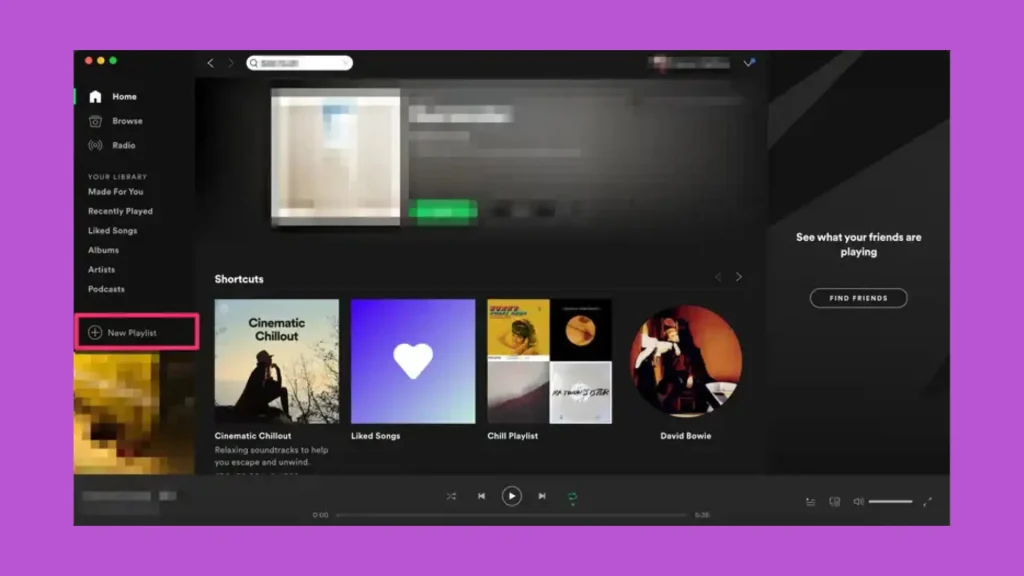
First, you need to create the playlist you want to add your songs to. To do this, click the New List button in the bottom left corner of the Spotify desktop app. Once you do, the playlist creation tab will open.
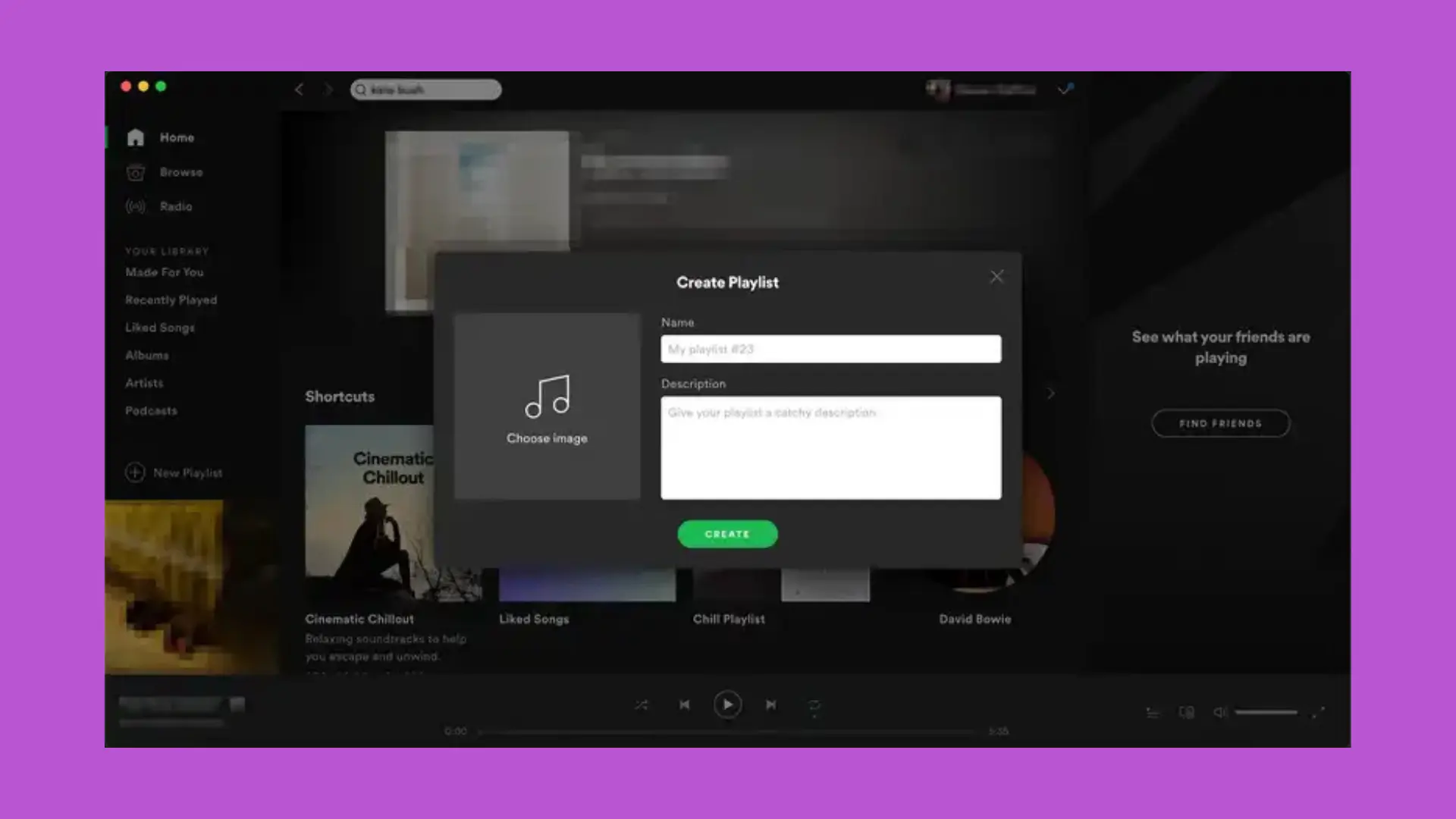
In this tab, you can choose to give your playlist a new name and, if you wish, enter a description of no more than 300 words. You can also add custom cover art using the “Choose Image” button. Once you’ve finished creating your playlist, simply click the green “Create” button to confirm the creation of your playlist.
Once you’ve created your playlist, it’s time to add songs. To do this, to the right of every song title on Spotify, you’ll see a three-dot icon and the word More. The button is located where you see it in the screenshot and appears when you hover over it. Click the More button or right-click on the song to open the drop-down menu with options for the song you clicked on.
In the drop-down menu that appears, first select Add to playlist. When you do this, a second list of actions will appear with your folders and playlists. Simply select the playlist you want to add the song to.
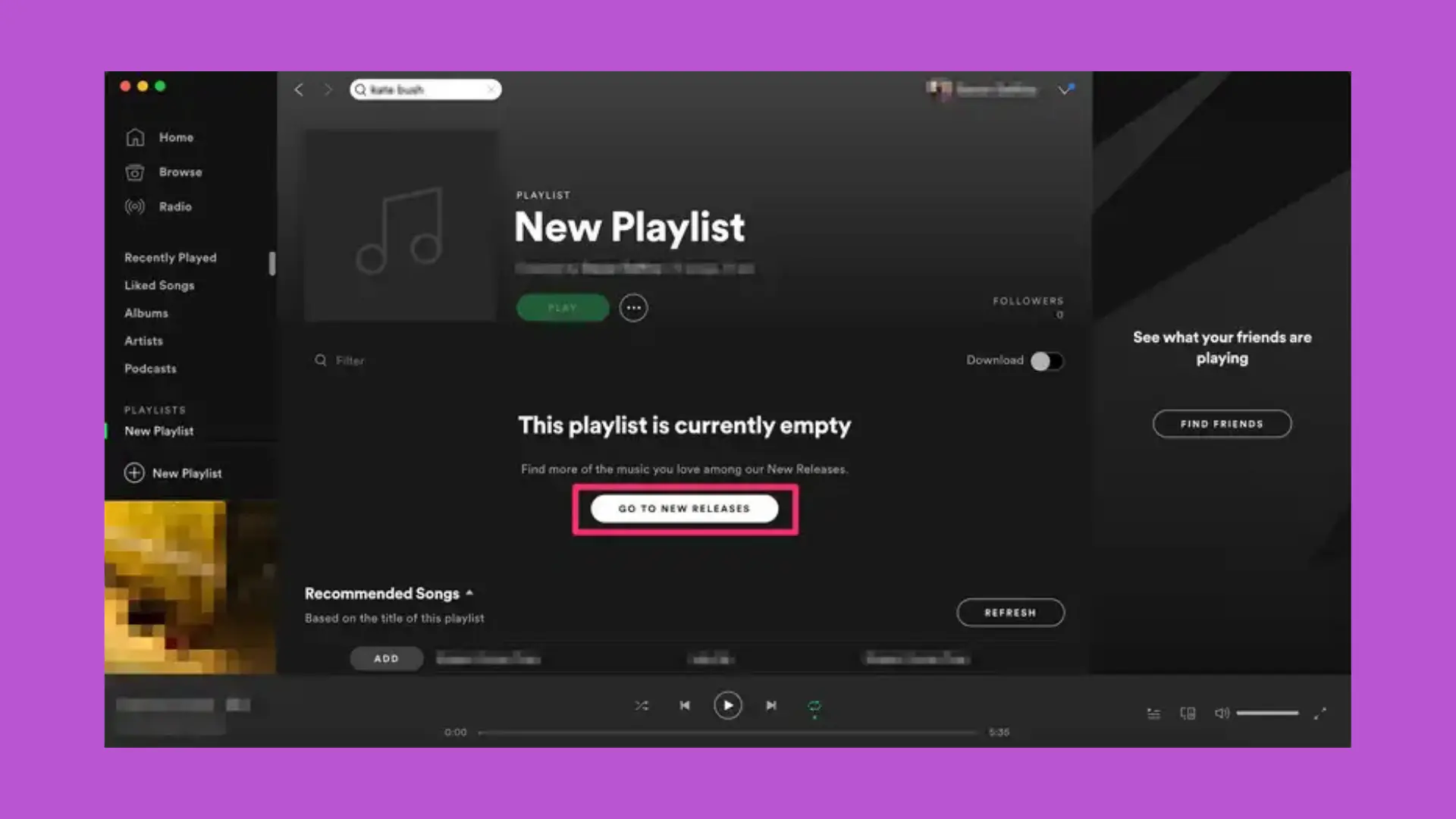
In addition to adding the song to a specific playlist, this menu also gives you the New Playlist option. If you choose this, you’ll create a new playlist with this song. The playlist will have the same name as the song, but if you right-click on it, you can edit it to change its name. If you don’t add custom cover art, Spotify will create one for any of your playlists based on the album art of the songs in it.
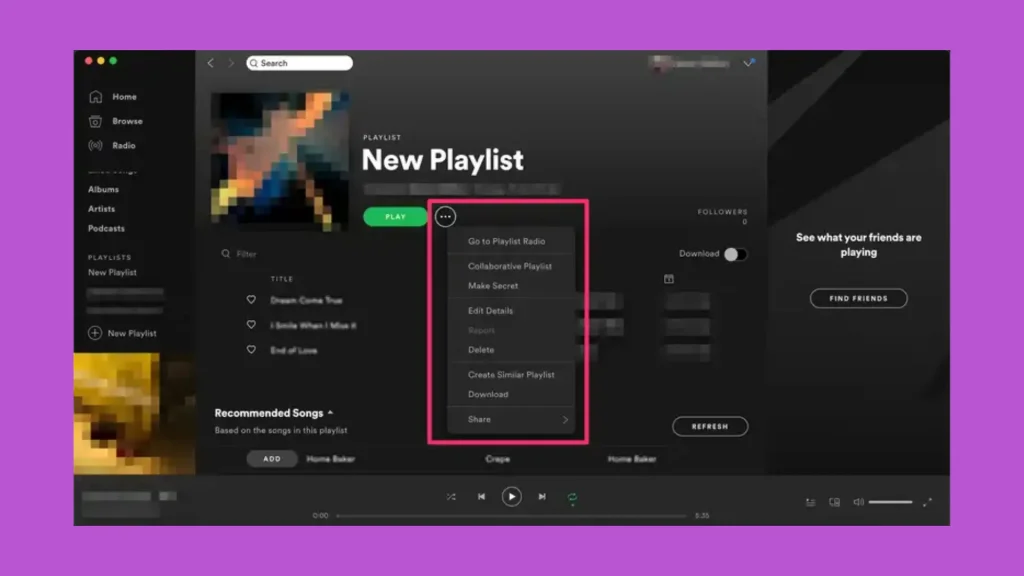
And that’s it! Once you’ve done this, all you have to do is repeat the process with all the songs you want to add. By the way, when you enter your playlist, below your list of songs, you’ll see a Recommended Songs section where Spotify will recommend songs similar to the ones you have in your playlist.
How to create a Spotify Playlist on Mobile
In the Spotify mobile app, the options for managing your playlist are fewer, but you can also create them and add songs. To get started, tap the Library section in the bottom menu of the app. When you’re in the Library menu, you’ll see a Playlists option; tap it to access it.
When you’re in the Playlist section, click the Create New Playlist button. It’s in the top right corner, and use the icon of a musical note with a plus sign to the left.
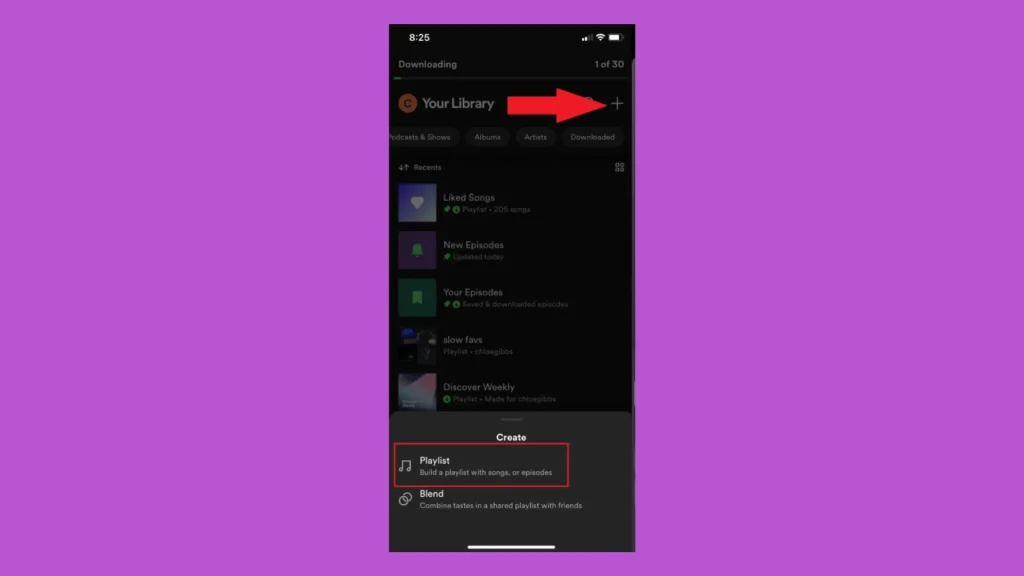
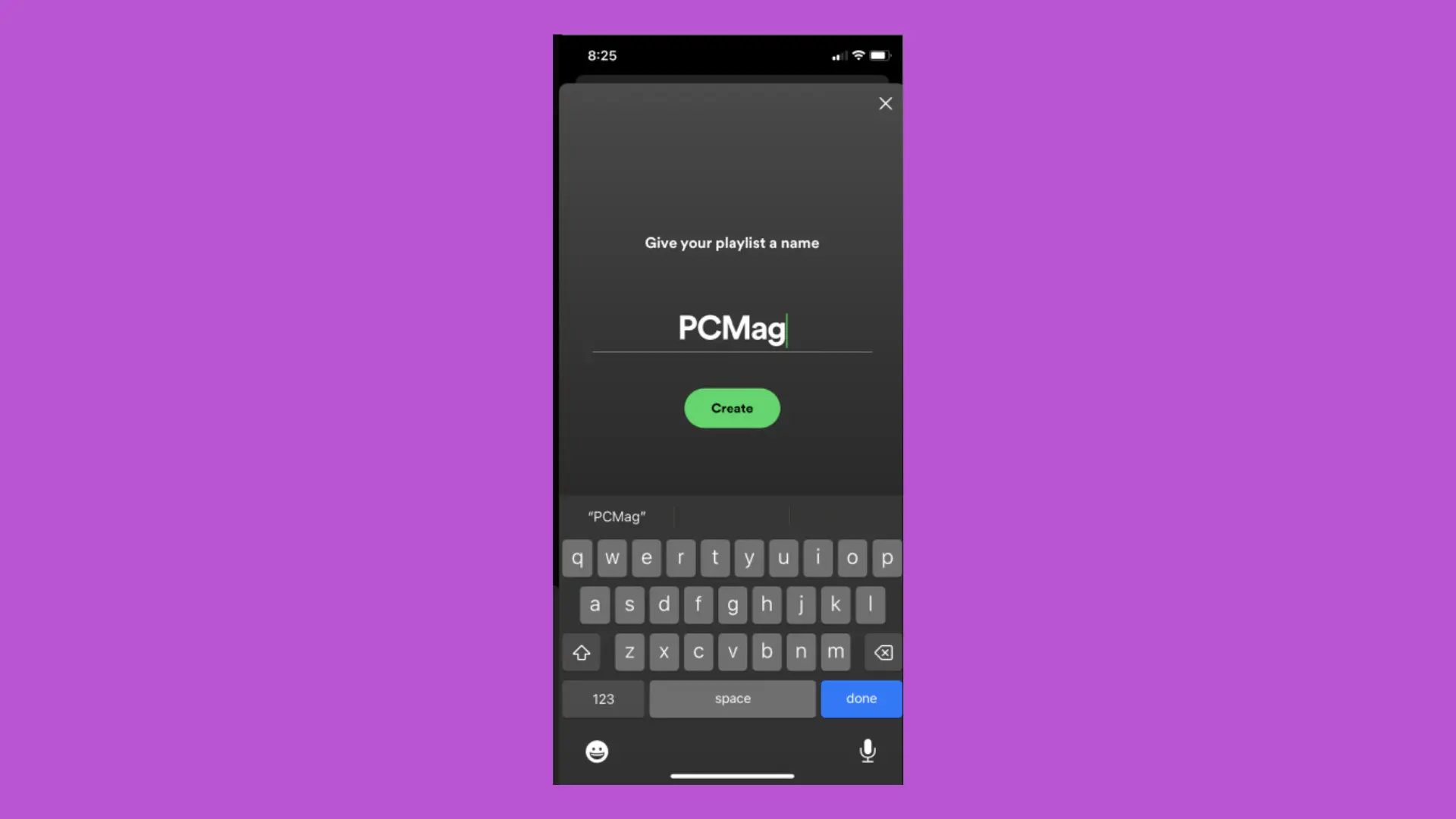
Clicking this option will open the Create New Playlist window. Unlike the desktop version, you can’t edit the cover art or add a description here, so just enter a name for the playlist and click the Create button. You’ll have created a new playlist with that name.
Next, just choose a song you want to add. To the right of its name, you’ll see a button with a three-dot icon. Click on this button or hold down your finger on the song to open a context menu with song-related options.
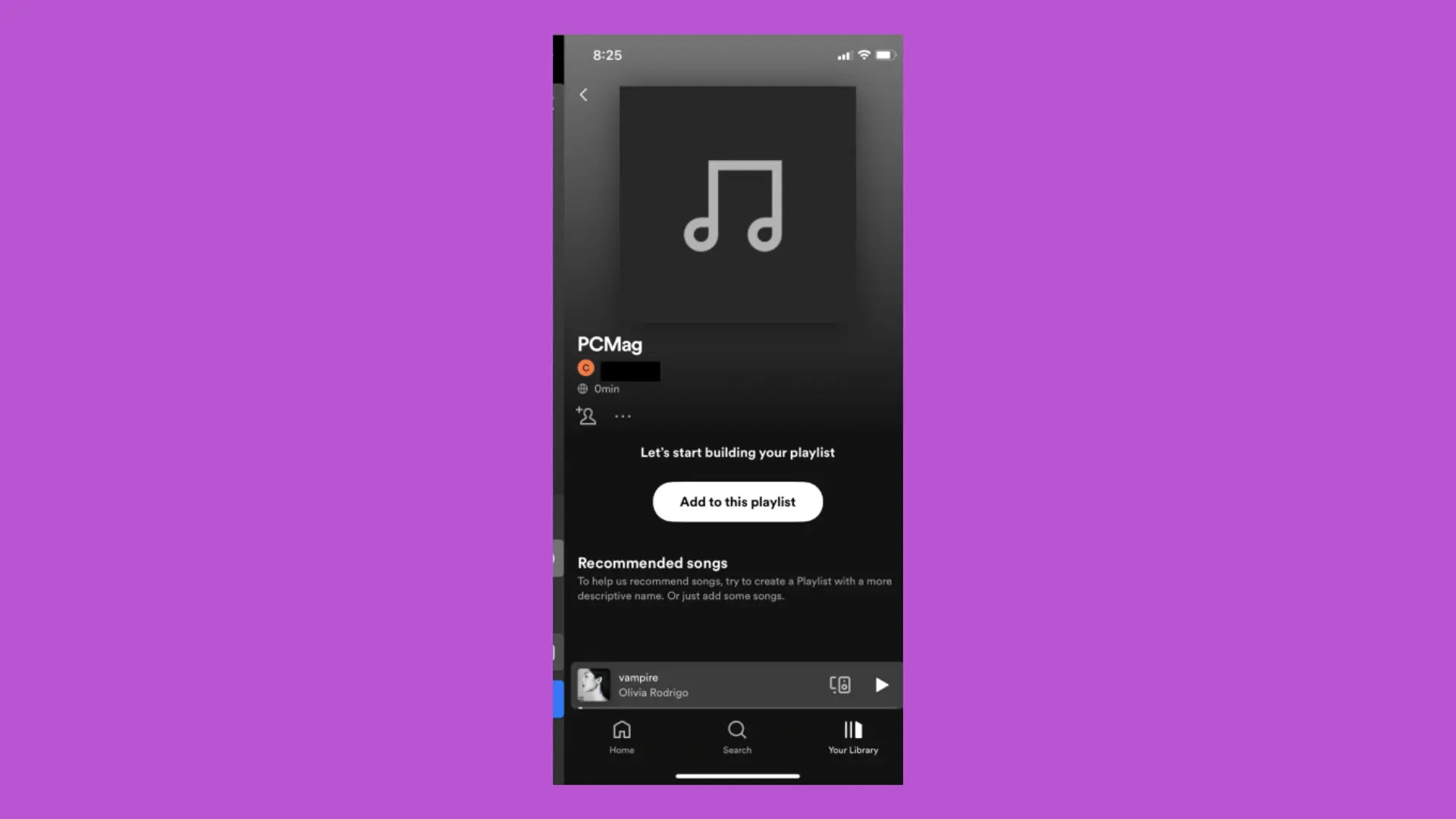
Once the options appear, click Add to playlist. A second dialog box will appear, asking you to choose which playlist to add the song to. That’s it. Just repeat the process for all the songs you want to add. Remember, you can download music from your playlists or saved albums to your phone to listen to them without using data.
How to create shared playlist on Spotify
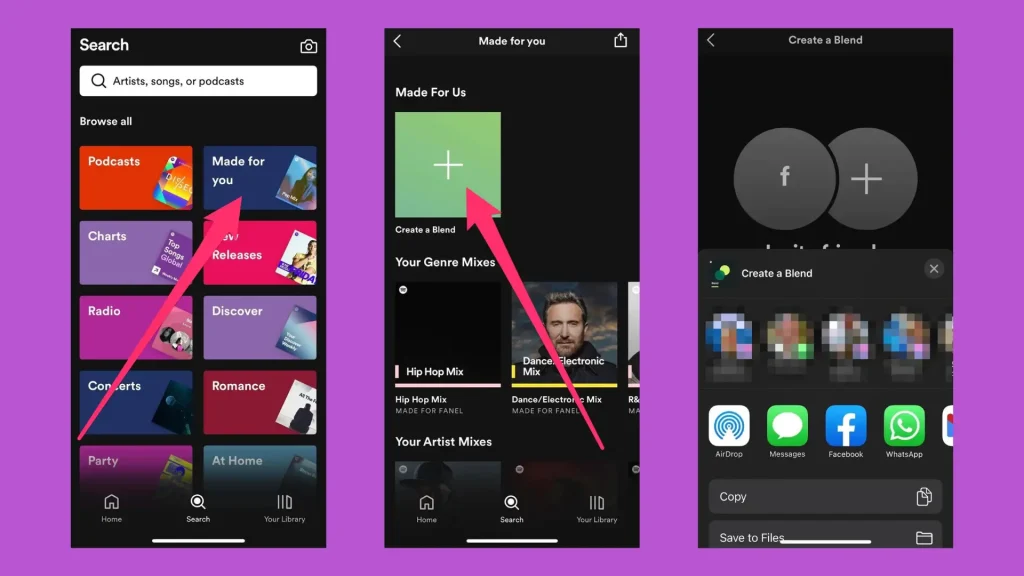
Step 1. Access the library through the “Your library” option, present in the bottom menu, and click on the “+” icon. Then, click on the “Blend” option.
Step 2. On the next screen, simply click on “Invite”. Then, copy the link and the invitation text using the “Copy” option, or select the social network through which you want to send the invitation. Once the other person accepts the invitation, the playlist will be created automatically, combining the tastes of the members.
Why create playlists on Spotify?
- Unlimited customization: With Spotify, you can create playlists to suit any mood, activity, or time of day. From relaxing playlists for a quiet afternoon to energetic playlists for an intense workout, the possibilities are endless.
- Musical Expression: Creating playlists is a great way to showcase your personality and musical tastes. Whether it’s sharing your favorite songs or discovering new musical gems, playlists are a form of artistic expression.
- Music Discovery: By sharing your playlists on Spotify, you can help others discover new artists and songs. Plus, Spotify’s recommendations feature lets you explore music similar to what you already like, further expanding your musical horizons.
Related:
- How to change Spotify Password
- How to Add Someone to Spotify Family Plan
- How to change Spotify Email
Final Words
Leave us your feedback on your experience creating playlists on Spotify, and don’t forget to check out other articles on our website that might interest you!